Blog · Getting reviews
How to Make a Google Review QR Code (Free) and Where to Put It

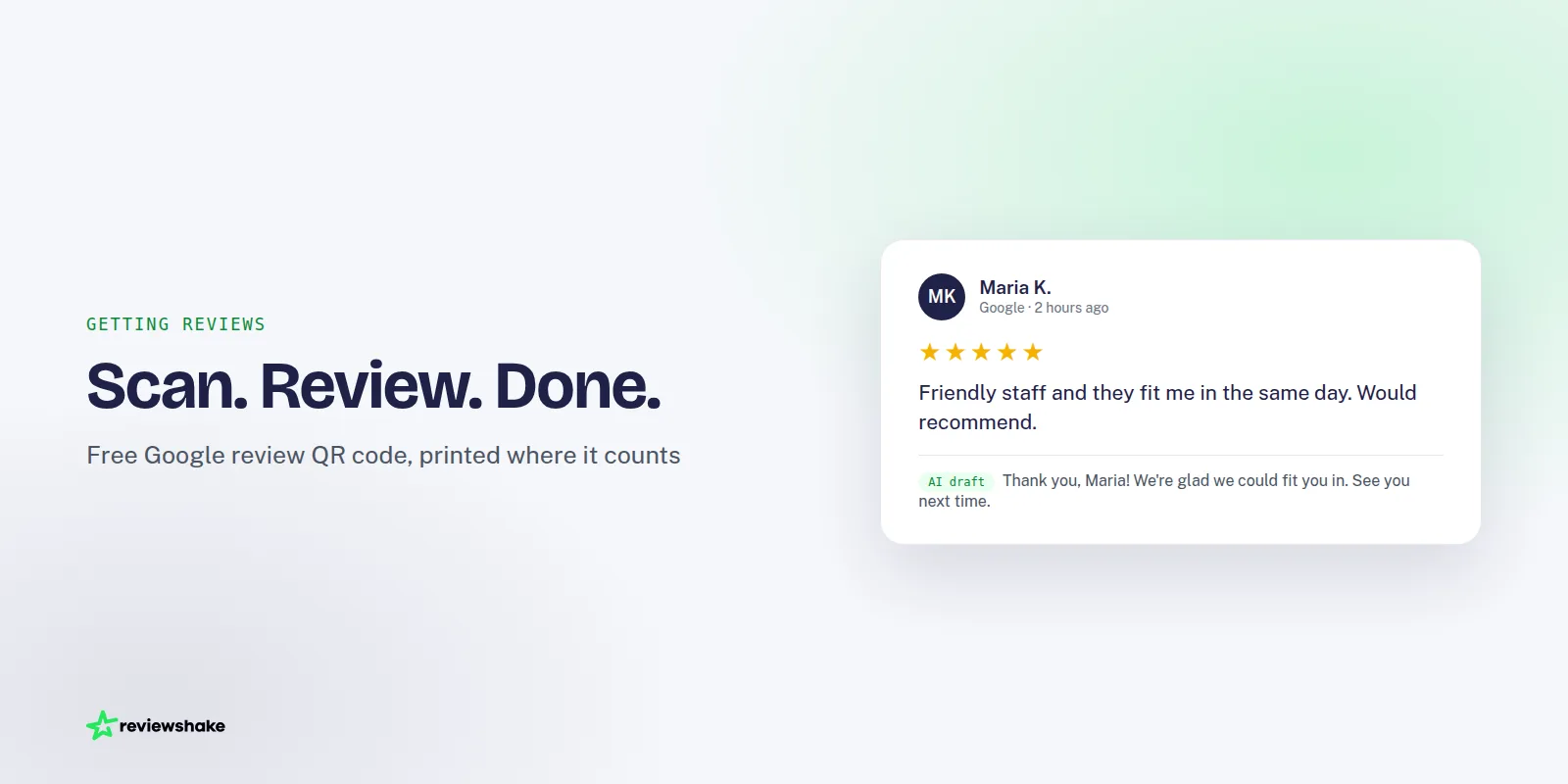
Most happy customers never leave a review, and the usual reason is friction. They have to remember later, find your listing, and work out where the button is. A Google review QR code removes most of those steps. The customer points their phone at it and lands on your review box.
This guide covers how to get the right link, how to generate a QR code for Google reviews with a free tool, which sizes and placements work, and how to tell whether the code is earning its space. It is written for business owners and for agency operators setting this up for clients.
Start with the right Google review link
A QR code is just a picture of a web address. If the address is wrong, every scan goes to the wrong place. So get the link right before you generate anything.
You want the link that opens the review form directly for your business profile, not a link to your website or a general Google Maps search result. Google explains how customers leave reviews, and how businesses can share a link, on its official help page about asking for reviews.
There are a few ways to get that link, and we walk through all of them in how to get your Google review link and share it. The quickest is the free link generator described in the next section.
One check before you move on: open the link in a private browser window or on a phone where you are not signed in as the business owner. You should see your business name and the star rating prompt. If you see something else, fix the link first.
Generate the QR code with the free tool
You do not need a paid account to do this. Our free Google review link and QR code generator handles both steps in one place.
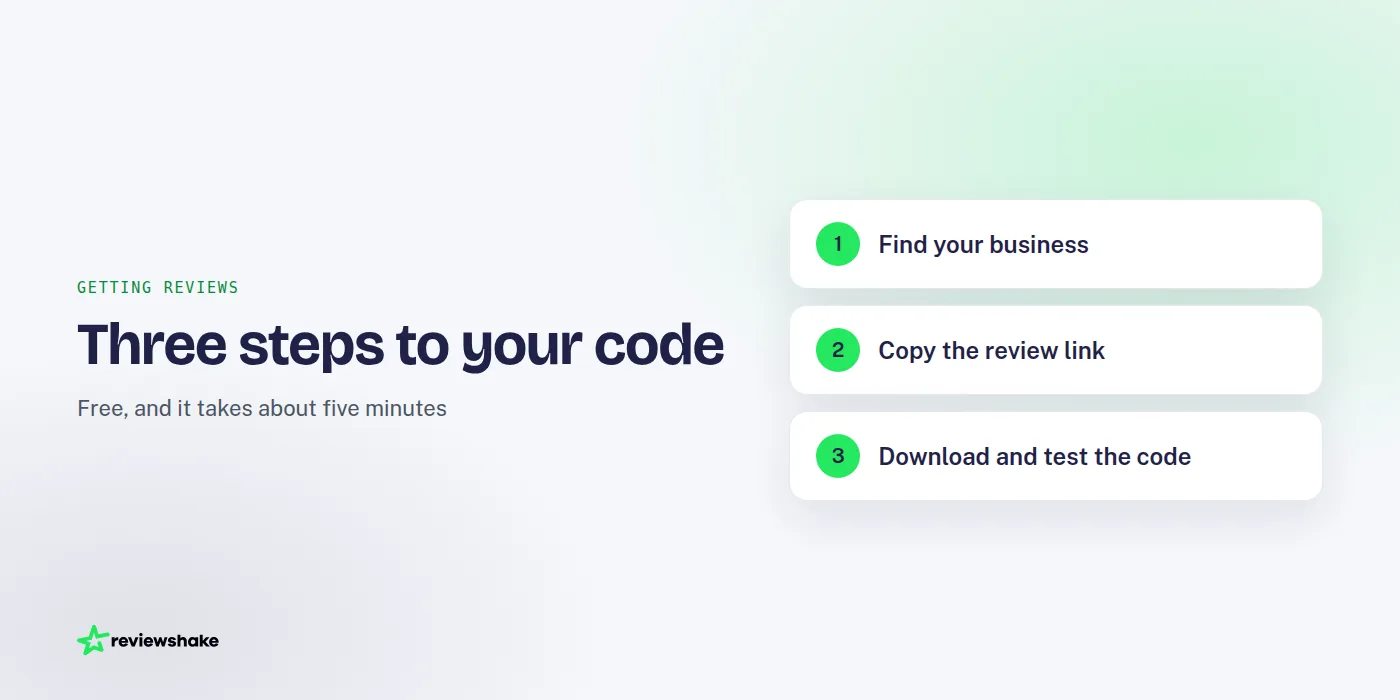
- Find your business. Search for the business name and location, then select the correct profile.
- Copy the review link. The tool returns the direct link that opens the review form.
- Generate the QR code. Download the image from the same page.
- Test it. Scan the downloaded code with at least two different phones, one iPhone and one Android if you can.
If you manage several locations, repeat the process for each one. Each location has its own profile and its own link. A single code that points to the wrong branch sends reviews to the wrong place, and that is hard to untangle later.
Download the largest file the tool offers. A bigger source image stays sharp when you scale it up for a window sticker or a banner. A small one turns blurry.
Print sizes and placements that work
A code that will not scan is worse than no code, because it wastes the customer's goodwill. The fixes are simple and mostly about size, contrast and distance.
Size and print rules of thumb
These are practical guidelines from experience, not hard standards. Always test your actual print before you produce a batch.
- Keep it big enough for the distance. A code held in the hand, such as on a receipt or card, can be small, around an inch or so across. One that a person scans from several feet away, such as on a window or van, needs to be far larger.
- Leave a blank border. Keep a clear margin of plain background around the code. Do not let text or graphics crowd it.
- Use dark on light. Black on white scans best. Avoid putting it on a photo, a pattern or a glossy surface that throws glare.
- Do not stretch it. Scale proportionally. A squashed code often fails.
- Print at full quality. Fuzzy edges from a low-resolution file are the most common reason a code fails.
Where to put it
The best spot is wherever the customer already feels good about the experience and has a free moment. This table covers the common ones.
| Placement | Why it works | Watch out for |
|---|---|---|
| Checkout counter | The customer is waiting and has their phone out. | Glare from lights. Keep it matte and at an angle that is easy to scan. |
| Receipt or invoice | It travels home with the customer. | Thermal paper fades and smudges. Test a printed receipt. |
| Table card | People have time to scan while they wait or finish a meal. | Spills and wear. Use a sturdy or laminated card. |
| Van or vehicle | Good for repeat visibility in your service area. | People will not scan a moving vehicle. Treat it as a reminder, and pair it with a short URL or a request from your technician. |
| Packaging or thank-you card | Reaches customers after the job or purchase is complete. | Make sure the card makes clear which business it is for. |
| Waiting room or reception | Customers have idle time and a captive audience. | Respect privacy rules in healthcare and legal settings. |
A van is the odd one out. Nobody is going to scan a code on a vehicle driving by, and nobody should try. It works better as a brand reminder that sits beside your phone number, while the real review requests happen at the job site or by message afterward.
Add a short call to action
A bare square of black and white tells people nothing. Put a line next to it that explains what happens when they scan and why it matters.
Good examples are short and specific: "Enjoyed your visit? Scan to leave us a Google review." Add a small star graphic if you like, but keep the words plain. You can also add a line such as "It takes under a minute," but only if you have timed it yourself.
The way you ask matters as much as the code. A staff member who says, "If you were happy with the work, we would really appreciate a review, and the code is right here," will outperform a sign on its own. Our guides on how to ask for a Google review include wording you can borrow.
Two things to avoid. Do not offer rewards in exchange for reviews, and do not steer only happy customers to the code while sending unhappy ones elsewhere. Google's prohibited and restricted content policy covers incentivized and selectively solicited reviews, and breaking it can get reviews removed.
How to track whether the QR code is working
Here is the honest part. A basic Google review link does not tell you how many people scanned it. Google shows you the reviews that arrive, not the scans that led to them. So tracking is about comparing before and after, and about keeping your placements distinct.
Try these approaches:
- Record a baseline. Note how many new reviews you get in a typical month before you put out any codes.
- Change one thing at a time. Introduce the counter sign first, give it a few weeks, then add the table cards. If you launch everything together you will not know what helped.
- Ask at the point of sale. Staff can note when a customer says they left a review after scanning. A tally on a clipboard is crude but useful.
- Watch review dates and wording. Reviews that arrive within a day of a busy weekend, or that mention the table or the technician, tell you the prompt is landing.
- Check the whole picture. A good review count is only useful if you also read what people say. Rating averages and sentiment trends show whether the extra volume reflects real satisfaction.
If you want to know how many reviews you need to hit a target rating, the Google review calculator guide shows the arithmetic, and the free tool includes a star-rating calculator.
Be patient. A code on a counter might produce only a handful of reviews a month at a small business, and that is fine. The value builds up because the code keeps working without anyone having to remember to ask every single time.
Connect the QR code to review request campaigns
A printed code only reaches people who are physically there and who feel like scanning. A review request campaign reaches everyone else. The two work best together.
The pattern looks like this. The in-person code catches the customer who is happy right now. The follow-up by email or text catches the customer who went home, got busy and would be glad to be reminded. Both lead to the same destination, your review profile.
In Reviewshake, review requests go out by email and SMS, with campaigns, QR codes and a review landing page. You add customers by CSV, through Zapier (which connects to 1,000+ apps) or through the API, so the request can follow a job, a booking or a sale without someone typing each name in. Our review generation software page explains how that fits together.
New reviews from Google, Facebook and 100+ other review sites come into one inbox. They are imported every 12 to 24 hours depending on the source, and email alerts flag new and negative ones so you can respond. That matters because collecting reviews is only half the job. Replies are visible to future customers, and unanswered complaints stand out.
For a wider view of where reviews fit in your marketing, see 7 ways to include online reviews in your marketing strategy.
Frequently asked questions
Is a Google review QR code really free?
Yes. The generator at /platform/google-review-management creates the link and the code at no cost, and you can print it as many times as you like. You pay only for the printing itself.
Does the QR code expire?
A code that simply encodes a web address does not expire by itself. It keeps working as long as the link behind it is valid. If your business moves, merges profiles or Google changes your listing, retest it and regenerate if needed.
Can I put the QR code on a business card or flyer?
Yes, as long as the size and contrast meet the guidelines above. Business cards are small, so check that the code scans comfortably from normal reading distance before you order a large run.
Do customers need a Google account?
They do. Reviewers must be signed in to a Google account to post. Most people on Android phones already are, and many iPhone users are too. Some will give up at the sign-in step, which is why a follow-up message helps.
Make asking part of the routine
The code itself takes about five minutes to make. The results come from putting it where customers will actually see it, asking in person, and following up with those who did not scan. Start with one placement, test it, and build from there.
If you are an agency doing this for clients, or a business with several locations, we built Reviewshake for that kind of reputation management. Plans start at $29/month per location, agency plans from $199/month are fully white-labelled, and there is a 14-day free trial with no credit card and no contract. You can see the details on the pricing page, or just start with the free tools and see how far the QR code gets you.
More reviews. Better replies. Recommended by Google and AI.
AI answer engines and Google decide who to recommend by reading reviews. Reviewshake collects yours from 100+ sites, drafts the replies, asks happy customers for the next one, and runs white-labelled for agencies. 14 days free, no credit card.
Start free trial