Blog · Google reviews
How To Remove Bad Reviews From Google My Business

You can't delete a bad review from Google My Business yourself, but you can flag it for removal if it breaks Google's review policies. If it doesn't, the best move is a professional public reply and a steady flow of new reviews.
Bad reviews can do real damage to your online reputation, because they're often among the first things a customer sees when searching for your business. This guide shows you how to remove bad reviews from Google My Business when you have grounds, and what to do when you don't. For a deeper walkthrough, see our step-by-step guide to Google review removal.
The short version: a review only comes down if there is a legitimate reason, such as a violation of Google's Terms of Service. That doesn't leave you helpless. A negative review is also a chance to show a high level of customer care.
Main Takeaways From This Article:
Understand Google's review policies to identify eligible violations for removing online reviews.
Flag any inappropriate review through Google My Business and monitor the status of your request.
Some Google reviews can't be removed due to platform policies and ethical constraints.
Respond professionally to legitimate negative reviews to maintain credibility, enhance customer trust, and encourage positive reviews.
Utilize tools like Reviewshake to monitor and respond to online feedback effectively.
Is It Possible to Delete Bad Reviews on Google Business?
You cannot delete or remove Google reviews from your Google business profile on your own. Google puts user-generated content first, because it wants potential customers to get a truthful and accurate overview of a business.
Flagging is possible when a review violates the terms of service. Google then checks the review and removes it if it does indeed violate the ToS. You can read the official rules in Google's prohibited and restricted content policy.
How To Remove Bad Reviews From Google My Business (Step by Step)
There are two main approaches to negative reviews on Google My Business: flag reviews that violate Google's policies, and respond constructively to legitimate negative feedback. The steps below cover the first approach.
Understand Google's Review Policies
The first step is to understand Google's review policies. These policies prohibit reviews containing:
Offensive Content: Reviews containing hate speech or discriminatory remarks based on race, gender, or other protected attributes are often removed by Google.
Deceptive Content: Fake Google reviews, such as made-up third-party hotel reviews or those intended to increase a business's ratings.
Mature Content: Reviews featuring adult themes that are inappropriate for a general audience.
Regulated/Dangerous/Illegal Content: Content promoting illegal activities or selling regulated goods and services.
Low-Quality Information: Spam or unrelated comments that do not add value.
Harassment or Bullying: Reviews that include threats, harassment, or bullying of any kind, which would generally be a clear violation of Google's policies.
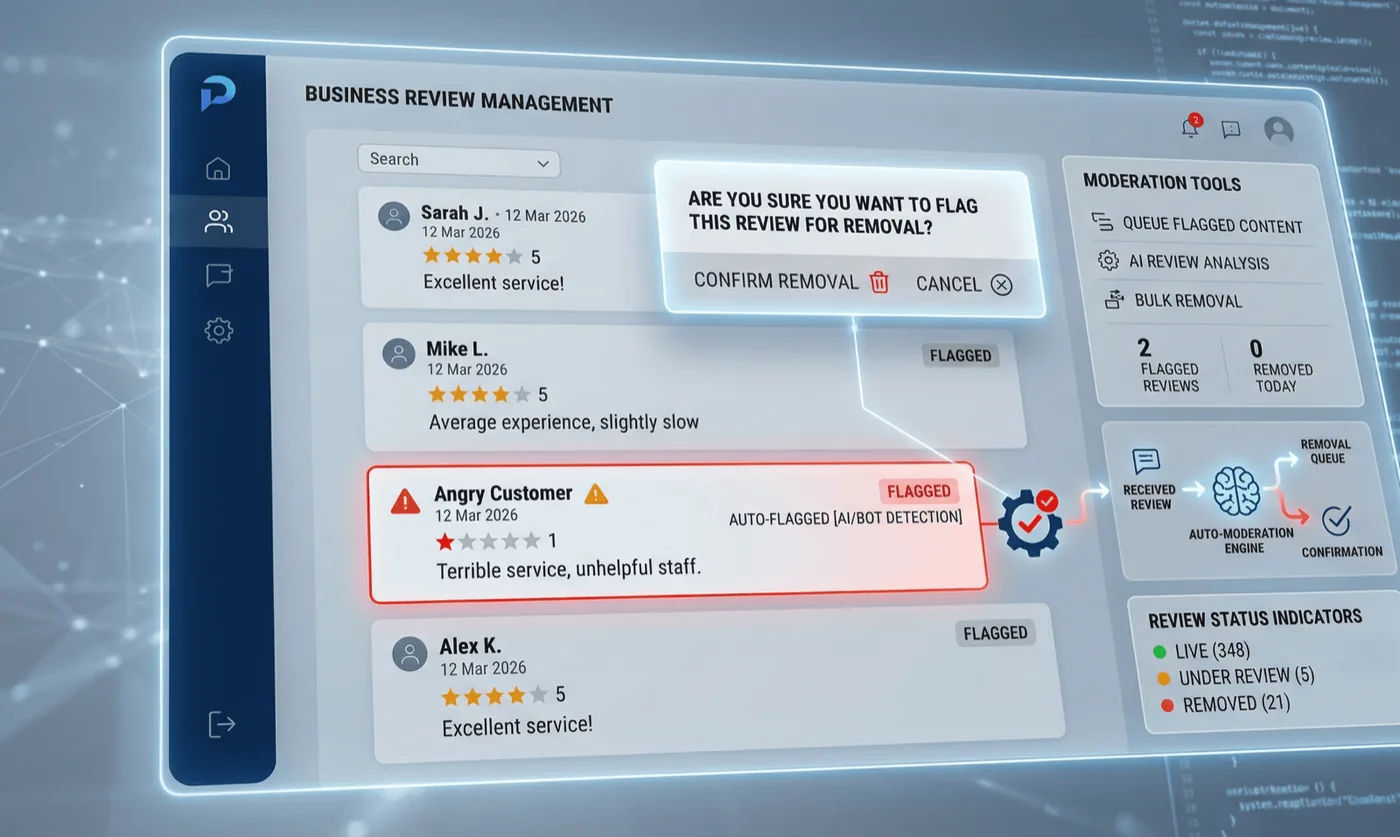
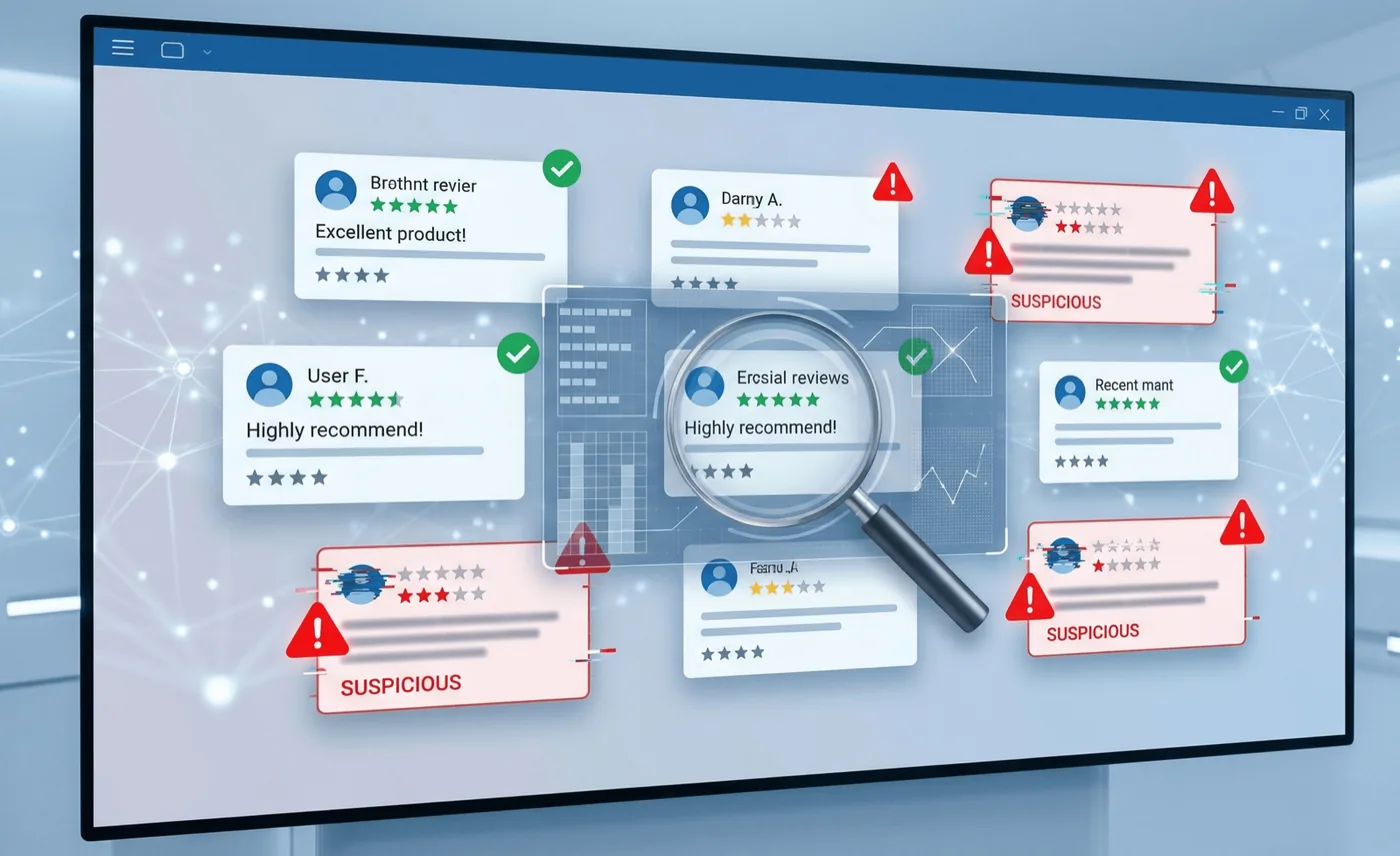
SPAM Content: If a review seems automated, off-topic, or intended to manipulate ratings, pay close attention and analyze it. You can also do a quick Google search or check locations on Google Maps to help identify fake accounts and content. Our guide on how to spot fake Google reviews can help.
Conflicts of Interest: If the review is posted by a current or former employee or business owner about their businesses, it might fall under this category.
Profanity or Vulgar Language: It is against Google's content guidelines to use inappropriate, offensive, or profane language, so reviews like this can be flagged for removal.
Identify Violations
Once you've familiarized yourself with Google's policies, carefully examine the content of the negative review.
Does it contain profanity, hate speech, or personal information?
Is it blatantly promotional or unrelated to your business?
If the review falls under one of Google's violation categories, proceed with flagging it. Identifying the violation up front can streamline the removal process and increase your chances of success.
Flag the Review in Google My Business
To flag a review for removal, log in to your Google My Business account. This is how you alert Google to content that violates its policies.
Here's a quick guide:
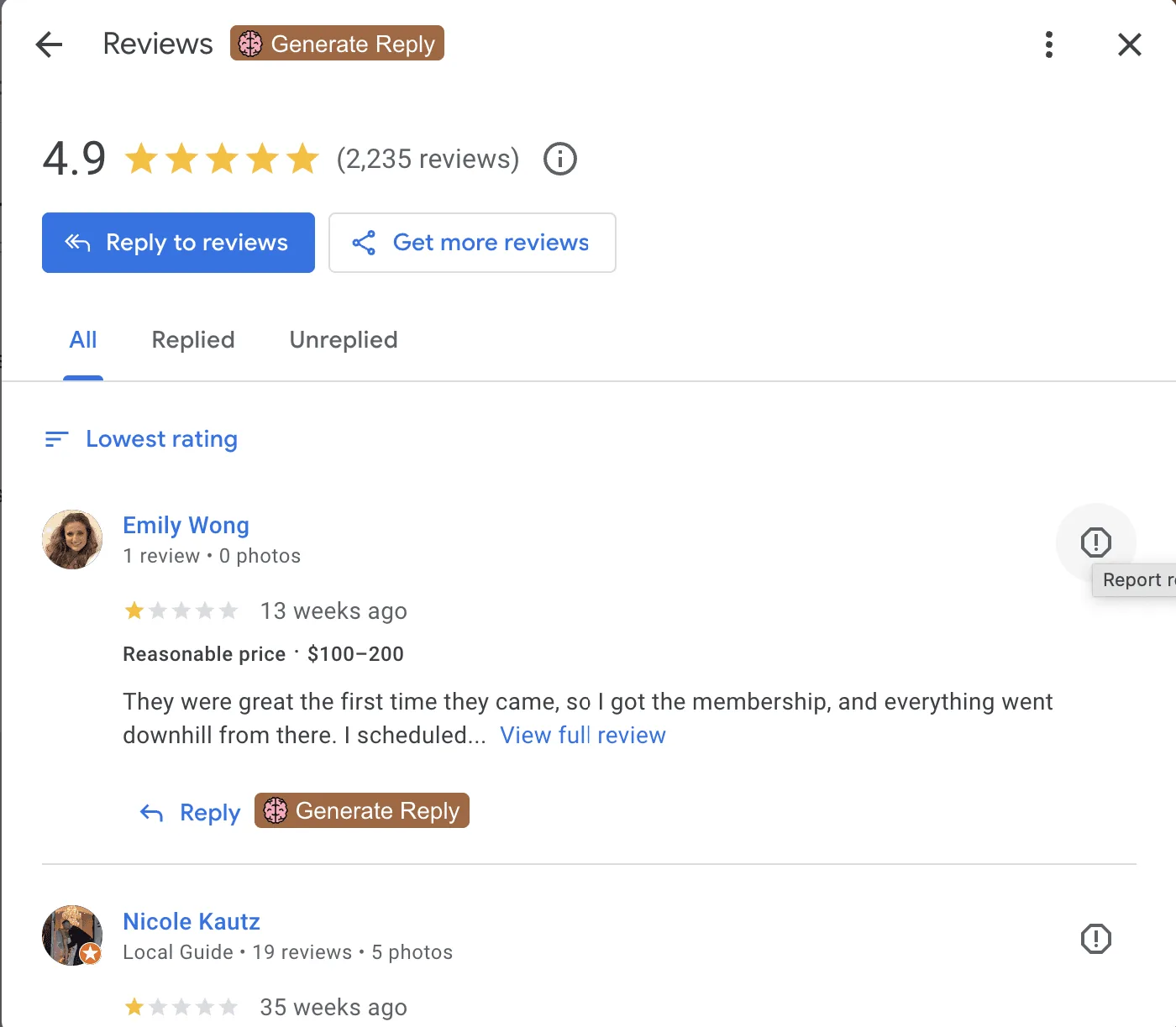
Track down the review: Go to the Reviews section of your business listing profile to find the negative review.
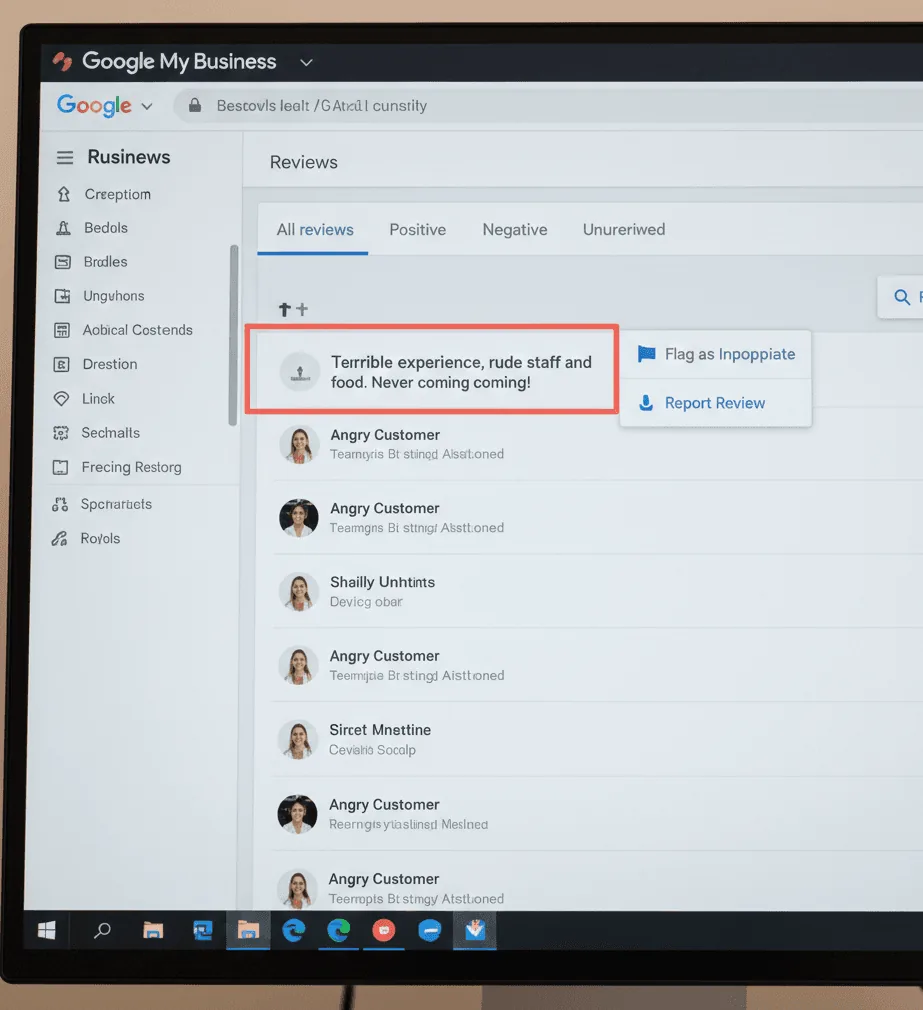
Flag the review: Find the three vertical dots icon and select "Flag as inappropriate". Make sure the review is actually in violation of the ToS before you flag it. Do not suppress legitimate reviews of your business.
Report the violation: Choose the appropriate category of violation to explain why the review needs to be removed. Provide supporting evidence if possible.
Hit 'Submit': After submitting the flag, wait for Google to review and decide on the potential removal of the flagged review.
Monitor Review Removal Status
Once you've flagged the review, keep an eye on its status so you can act swiftly. Here's how:
Consistently check your dashboard: Sign into your GMB dashboard frequently to see if you've received any updates regarding the flagged review.
Email notifications: Google will usually send an email notification about the status of your request, so check your email regularly.
Document the Process (optional): Maintain a record of each step taken, including when the review was flagged and any follow-up actions. This can be useful for any potential appeal.
Submit a One-Time Appeal, If Necessary
If your first effort to flag a review did not result in its removal, Google will let you submit a one-time appeal. Only take this step if you're fully confident that the review violates Google's policies and ToS and your previous attempts were not successful. Do not try to flag legitimate reviews!
Here's how to submit a one-time appeal:
Step 1: Gather evidence. You should only flag a review that actually violates the Terms of Service, so gather evidence of the violation first.
Step 2: Log Into Google My Business: Access your business profile and navigate to the "Check the status of a review I reported previously and appeals options" section to find the appropriate form.
Step 3: Fill out the form: At the bottom of the page, click "Appeal Eligible Reviews". You can select up to 10 reviews at a time. Include all the relevant details, including links to the review and explanations of why it needs to be removed.
Step 4: Submit. Once you've completed the form, click "Submit".
Step 5: Monitor Status. Check your email and the Google My Business dashboard for updates regarding your appeal.
Why Removing Every Negative Review Isn't Possible
There are several reasons why Google won't remove every negative review, even if you believe it's unfair:
Platform Policies
Google wants users to get a comprehensive and accurate picture of a business so they can make informed decisions. Offensive or irrelevant content ought to be filtered out, but honest reviews are valued, even negative ones.
Negative public feedback can be addressed in a professional manner and can offer useful insights into areas the business should focus on improving.
Ethical & Legal Considerations
Attempting to delete all negative reviews can be seen as unethical and manipulative. Ironically, information like that coming to light could do a lot more harm to your reputation than a negative review.
Transparency
Customers appreciate seeing an authentic portrayal of a business, and they especially like seeing how a business handles negative feedback. Is there tension in the reply? Does the business shift the blame? Or did it promptly go above and beyond to resolve the issue and win the customer over? How a business handles negative feedback can say more about it than a perfectly clean profile, which can look inauthentic.
Constructive Feedback
Not all negative reviews are malicious. Bad reviews can be a goldmine of insight into where your business can improve.
By reading and understanding the criticism, you can enhance the customer experience. This demonstrates a commitment to growth and can turn a negative experience into a positive opportunity.
Customer Trust and Engagement
Replying to negative feedback thoughtfully shows prospects that you value your customers and are committed to an outstanding experience. Your reply can also turn the negative review into a positive interaction, and you might be able to right the wrong.
Tips for Handling Legitimate Negative Google Reviews

Even the top enterprises will get negative feedback here and there. While you cannot delete legitimate negative reviews, you can take steps to limit the effect they have on your reputation and turn them into positive interactions.
Act Quickly
Responding quickly tells the market and your audience that you care about your customers. Here's how to do it efficiently:
Acknowledge the reviewer right away. Make sure they know you've seen their feedback and you're looking into the matter.
Resolve the matter quickly. The faster you solve the issue, the more likely it is that the customer will be satisfied.
Follow up. Provide updates as needed to keep the customer in the loop.
Apologize swiftly. If necessary, apologize immediately to show that you regret their negative experience.
Investigate rapidly. Look into the issue quickly to provide a well-informed response rather than generic statements.
Here's how to perfect your tone
Maintaining a professional tone is crucial. Professional responses provide an opportunity to rectify issues and showcase your communication skills.
Approach each review calm and collected, regardless of how frustrated you might be.
Always use polite language and address the reviewer kindly. Avoid confrontational or dismissive tones.
Clearly outline the exact steps you'll take to address the issue and resolve the customer's concerns.
Avoid emotional or subjective arguments. You're here to resolve the issue calmly.
Always sign off professionally. Say "thank you" or "best regards" in your replies.
Acknowledge and Apologize
When faced with a legitimate negative Google review, acknowledging the customer's experience and offering a sincere apology can go a long way in recapturing customer trust.
Phrases like "I understand your disappointment with.." or "we're truly sorry that your experience with us fell short" show that you've listened to the customer and are approaching the situation respectfully.
If your business made a mistake, own up to it. Customers who see a business recognize its mistakes and resolve issues tend to appreciate it. No one is perfect, and customers just want businesses to put in their best effort when things go wrong.
Offer to Make Things Right
Making things right with the customer can make or break your online reputation. Here are a few things to take into account:
Offer a gesture of goodwill, such as a replacement, refund or complimentary service.
Communicate with the customer and follow up to confirm that their issue has been resolved.
Remind the reviewer that they can always contact you to discuss any additional issues or concerns.
Frequently Asked Questions
How do I remove Google reviews from my business?
You can't delete them directly. You flag the review in your Google My Business reviews section, pick the violation category, and Google decides whether to remove it. If the flag is rejected, you can submit a one-time appeal.
How do I remove negative Google reviews that don't break any policy?
You can't. Honest negative reviews stay up, even when they feel unfair. Reply professionally, fix the issue where you can, and keep collecting reviews from happy customers.
Can I remove a bad Google review myself?
No. Only the reviewer can delete their own review, or Google can remove it after a flag. You can read more in our guide on how to delete a Google review.
What counts as a reason to remove bad Google reviews?
Fake or spam reviews, offensive or harassing content, conflicts of interest, off-topic posts, and other violations of Google's policies listed above. A rating you simply disagree with is not enough.
Managing Negative Reviews and Your Online Reputation
While negative reviews can be discouraging, they don't define your business. By responding professionally and addressing customer concerns, you can effectively manage your online reputation.
Reviewshake is reputation management software that can help. With Reviewshake, you can:
Centralize Review Management: Gather reviews from over 100 platforms into a single, easy-to-navigate dashboard, making it simple to monitor and respond to feedback.
Automate Review Requests: Streamline the process of collecting new reviews by sending out automated, personalized requests via email and SMS.
Showcase Positive Feedback: Use widgets and Rich Snippets to highlight your best reviews on your website and social media, enhancing your brand's visibility and credibility.
Leverage Advanced Analytics: Gain insights into review performance, conduct sentiment analysis, and benchmark against competitors to inform strategic decisions.
Streamline Communications: Use the Inbox feature to organize all customer interactions, including review requests and private feedback, into one comprehensive timeline.
Ready to take control of your online reviews? Try Reviewshake for free and see how our platform can help you manage and improve your online reputation efficiently.
More reviews. Better replies. Recommended by Google and AI.
AI answer engines and Google decide who to recommend by reading reviews. Reviewshake collects yours from 100+ sites, drafts the replies, asks happy customers for the next one, and runs white-labelled for agencies. 14 days free, no credit card.
Start free trial